





How to Pair your Replacement Beats Charging Case or Earbuds
Pairing steps
Put both earbuds into the charging case — whether you replaced an earbud or the case itself, all 3 pieces need to be together before starting.
On your iPhone, open Settings → Bluetooth. Tap the (i) icon next to your Beats, then tap Forget This Device. Before you forget, note the model name shown — handy if you need to contact us later. On Android go to Settings → Connections → Bluetooth, tap the gear icon, then Unpair.
Close the lid and plug the case into a wall outlet. Leave it for at least 30 minutes — don't skip this step.
With your device nearby, open the case lid. Press and hold the system button on the inside of the case for 15 seconds until the LED flashes:
Red and white flash = resettingWhite flash = ready to pair
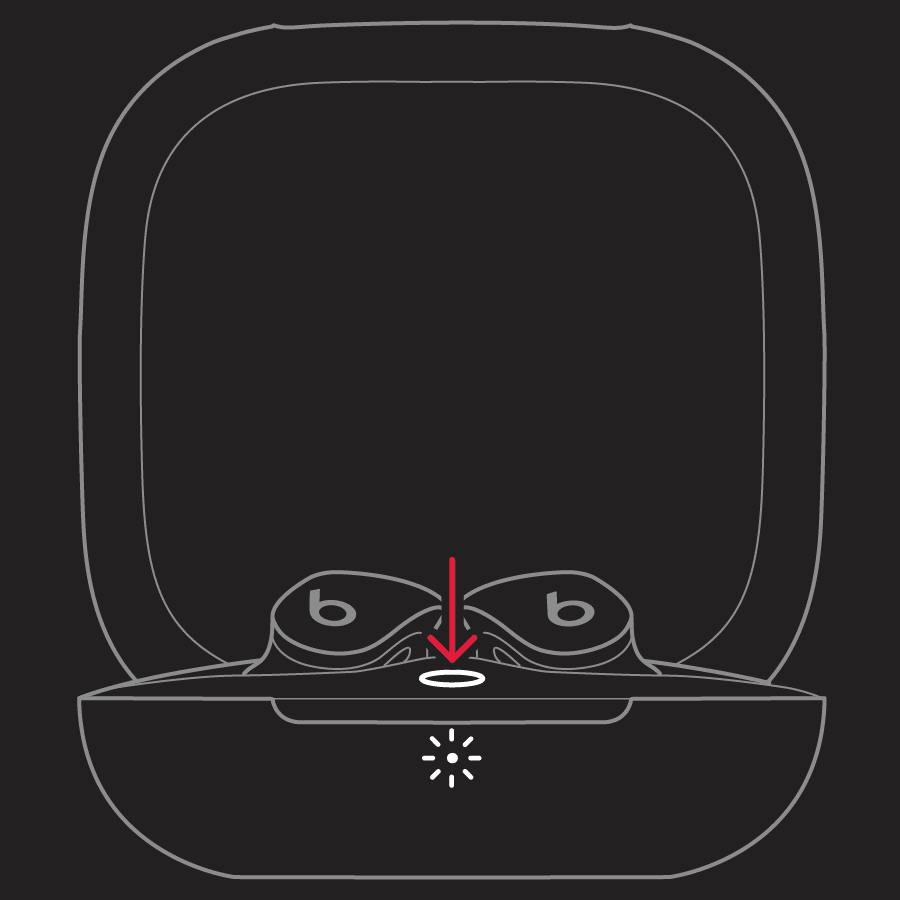
On iPhone a setup animation will appear — tap Connect and follow the prompts. On Android, go to Bluetooth settings and select your Beats from the list. Your earbuds are now paired and synced together.
The LED keeps flashing red and won't go white
A persistent red flash almost always means one of two things:
1. Needs more charge
Put both earbuds back in the case, plug into power, and leave for another 30 minutes. Then repeat the system button hold. Make sure you're plugged into a wall outlet — charging from a computer USB port is too slow.
2. Model mismatch
The replacement earbud must be the exact same model as your existing one. Beats Fit Pro, Studio Buds, and Studio Buds+ are not interchangeable — even though they look similar. Check the model name printed on the inside of the charging case lid to confirm both match.
Still need help?
Our team is ready to help you get paired.