How to Pair Replacement AirPods
Select your AirPods model
Pairing steps
Put both earbuds into the charging case — whether you replaced an earbud or the case itself, all 3 pieces need to be together before starting.
On your iPhone, open Settings → Bluetooth. Tap the blue (i) icon next to your AirPods, then tap Forget This Device. Before you forget, note the model number shown — handy if you need to contact us later.
Close the lid and plug the case into a wall outlet. Leave it for at least 30 minutes — this is the most important step, don't skip it.
With your iPhone nearby, open the case lid and press and hold the small button on the back of the case. Hold it until the light flashes amber, then white.
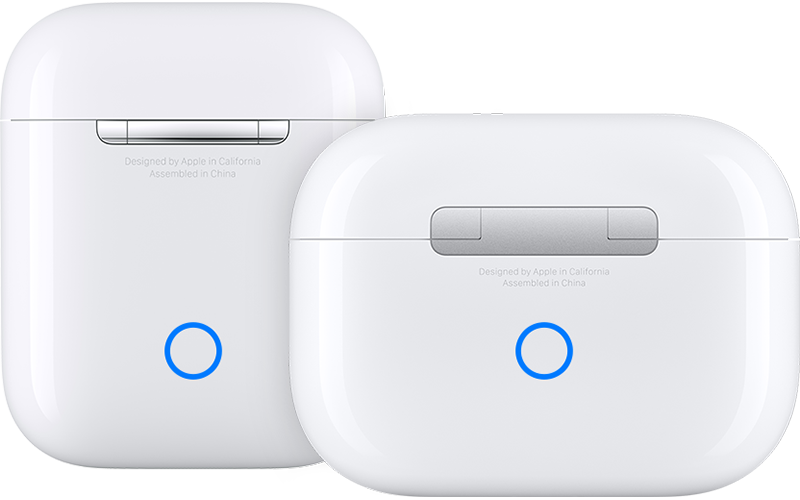 Amber flash = resetting
White flash = ready to pair
A setup animation will appear on your iPhone screen. Tap Connect and follow the prompts — your AirPods are now paired and synced together.
The amber light keeps coming back
If the amber light keeps blinking and won't go white, it's almost always one of two things:
1. It needs more time
Put both earbuds back in the case, plug into power, and leave it for another 30 minutes with your iPhone in the same room connected to Wi-Fi. Then try the reset again. Your iPhone downloads a firmware sync to the AirPods in the background — this is what often resolves it.
2. There's a model mismatch
The replacement earbud and your existing earbud must be the exact same model. Even models that look identical — like AirPods Pro 2nd Gen Lightning vs USB-C, or AirPods 4th Gen ANC vs Non-ANC — will not pair with each other.
To check, look at the small text printed on the stem of each earbud.
The model number is stamped in tiny print on the inner stem of the earbud — the part that points downward when worn. It starts with the letter A (e.g. A2699).
Check both earbuds and compare their model numbers using the link below. If they land on different cards, that's your mismatch.
Check your model numbers →Start an exchange for the correct model →
Pairing steps
Put both earbuds into the charging case — whether you replaced an earbud or the case itself, all 3 pieces need to be together before starting.
On your iPhone, open Settings → Bluetooth. Tap the blue (i) icon next to your AirPods, then tap Forget This Device. Before you forget, note the model number shown — handy if you need to contact us later.
Close the lid and plug the case into a wall outlet. Leave it for at least 30 minutes — this is the most important step, don't skip it.
With your iPhone nearby, open the lid. These models have no button — instead double-tap the front of the case, following the light:
- Double-tap while the status light is on
- Double-tap again when the light flashes white
- Double-tap a 3rd time when the light flashes faster
 Amber flash = resetting
White flash = ready to pair
A setup animation will appear on your iPhone screen. Tap Connect and follow the prompts — your AirPods are now paired and synced together.
The light flashed amber but won't go white
If the amber light keeps blinking and won't go white, it's almost always one of two things:
1. It needs more time
Put both earbuds back in the case, plug into power, and leave it for another 30 minutes with your iPhone in the same room connected to Wi-Fi. Then try the reset again. Your iPhone downloads a firmware sync to the AirPods in the background — this is what often resolves it.
2. There's a model mismatch
The replacement earbud and your existing earbud must be the exact same model. Even models that look identical — like AirPods Pro 2nd Gen Lightning vs USB-C, or AirPods 4th Gen ANC vs Non-ANC — will not pair with each other.
To check, look at the small text printed on the stem of each earbud.
The model number is stamped in tiny print on the inner stem of the earbud — the part that points downward when worn. It starts with the letter A (e.g. A2699).
Check both earbuds and compare their model numbers using the link below. If they land on different cards, that's your mismatch.
Check your model numbers →Start an exchange for the correct model →
Still need help?
Our team is ready to help you get paired.